
|
Advanced Sale Item Look-upThis Help File Page was last Modified on 01/31/2018 |


|
|
Advanced Sale Item Look-upThis Help File Page was last Modified on 01/31/2018 |
 Scroll to Top of Page
 Print Topic
 Email Feedback
 Show/Hide Expanders
❑Some businesses have a very large number of Sale-Purchase Items defined - often the majority of them are Inventory items.
•When entering Sales, Proposals or Purchases, locating the correct Sale-Purchase code may mean searching through a very long list.
•To speed this process, create Sale Item Groups to identify specific sets (e.g., categories, groups, types) of Sale-Purchase Items.
•Assign a Sale Item Group to each Sale-Purchase Item, as appropriate.
•Sale Item Group - Optionally, you may also assign a Sale-Purchase Item to a Sale Item Group using the Drop-Down Selection List provided.
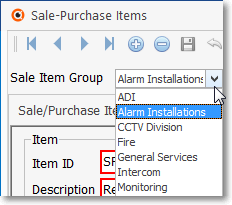
Sale Item Group field
➢Note: Sale-Purchase Items may be easily assigned to a Sale Item Group using the Sale Item Group Assignment Form.
❑Advanced Sale Item Look-up
•To access the Advanced Sale Item Look-up dialog while entering a Sale, a Proposal a Bill or a Purchase.

a)Click the Advanced Item Search ("Price Tag") Icon on the Ribbon Menu at the bottom of the Detail Line Items Grid to activate the Advanced Sale Item Lookup.

b)Place the Mouse Pointer in the Item field and Press Alternate and F2 at the same time (Alt+F2) to activate the Advanced Sale Item Lookup.
•The Advanced Sale Item Lookup dialog will be displayed.
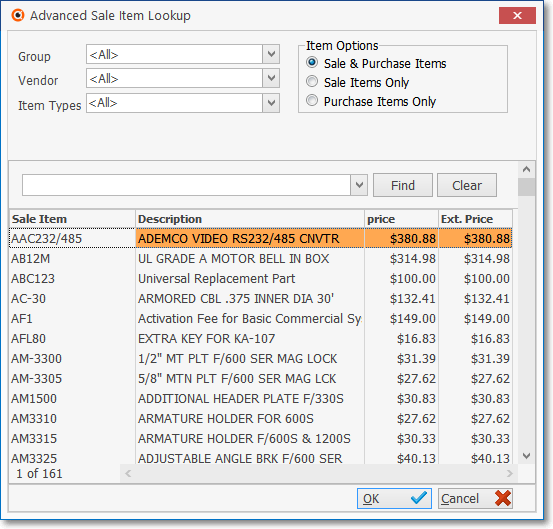
Advanced Sale Item Look-up dialog
✓Item Options - The Item Options box will automatically select the correct choice which limits the choices in the selection list.

▪Sale & Purchase Items - the default when creating a Purchase Order.
▪Sale Items Only - the default when creating a Sales Invoice or Proposal.
▪Purchase Items Only - the default when entering a Purchase Invoice.
•There are three (3) selection criteria on the Advanced Sale Item Look-up that you may use individually, or together with the others, to quickly refine what will be presented in the Look Up List.

Advanced Sale Item Lookup dialog
1.Group - use the Drop-Down Selection List to Choose a Sale Items Group.
▪The Group selection may be used by itself or combined with any of the other selection criteria to further refine your selection
▪By making this selection, only Sale-Purchase Items with this Sale Item Group code will be displayed.
▪Click on the desired Sale-Purchase Item
▪Click OK to make the selection.
2.Vendor - use the Drop-Down Selection List to Choose a Vendor.
▪The Vendor selection may be used by itself or combined with any of the other selection criteria to further refine your selection
▪By making this selection, only Sale-Purchase Items with this Vendor code assigned (on the Sale-Purchase Item Form) will be displayed.
▪Click on the desired Sale-Purchase Item
▪Click OK to make the selection.
3.Item Types - There are, in addition to <All> four predefined Item Types:
a)Inactive - limits the list to those Sale-Purchase Items Checked as Inactive.
b)Inventory - limits the list to those Sale-Purchase Items Checked as Inventory.
c)Kits - limits the list to those Sale-Purchase Items that are Checked Kit Designation.
d)Recurring - limits the list to those Sale-Purchase Items that are Recurring Revenue Items.
▪Click on the desired Sale-Purchase Item
▪Click OK to make the selection.
•There are four (4) columns in the Look Up List on the Advanced Sale Item Lookup dialog:

1.Sale Item - The Sale-Purchase Item code assigned to each listed Sale Item.
2.Description - The description of each listed Sale Item.
3.Price - The regular Retail Price of each listed Sale Item.
4.Ext. Price - The Adjusted Retail Price for this Sale Item after factoring in a Mark Up/Down Percentage assigned to the Subscriber or as a Price Override on the Sale-Purchase Item itself.
•Using the Find and Clear options:
✓Enter text to search - This field (see the mouse pointer in the illustration below) may be used to perform an incremental search simultaneously on two Columns (i.e., Sale Item and Description) to locate a specific word or phrase in the Advanced Sale Item Lookup Grid as described below:

✓Find - Type the characters (numbers) which represent the Sale-Purchase Item to be located.
▪Upper and lower case entries are treated the same (the entry is compared to both).
▪The search is performed incrementally, with the Sale-Purchase Item(s) matching closest match highlighted.
✓Clear - To start a new search, or just to cancel the existing search, Click the Clear option.
•When located: Click on the desired Sale-Purchase Item and then Click the  button.
✓The Advanced Sale Item Lookup dialog will Close.
✓The selected Sale-Purchase Item will be inserted into the Item column on the Sales Form.
❑Many times this feature is not needed initially, but as your business and Inventory grows, it may become necessary in the future.
•Assigning Sale Items Groups, after the Sale-Purchase Items have already been defined, is easy if you use the Assign Sale Item Groups procedure.