
|
Dealer Billing - Subscribers w/o Recurring RevenueThis Help File Page was last Modified on 07/25/2022 |


|
|
Dealer Billing - Subscribers w/o Recurring RevenueThis Help File Page was last Modified on 07/25/2022 |
 Scroll to Top of Page
 Print Topic
 Email Feedback
 Show/Hide Expanders
❑Dealer Billing - Subscribers Without Dealer Recurring Revenue report is displayed as a Grid that may then be reconfigured, sorted, and/or filtered.
•The Subscribers Without Dealer Recurring Revenue will provide
✓a detailed listing of each Subscriber who has a Subscriber Panel (CSID) defined
✓and being monitored by your Company's Central Station
✓and is assigned to a Dealer whose Accounts are being monitored by your Company's Central Station
✓but does NOT have a Recurring Revenue record defined
✓therefore it will not be Invoiced automatically using the Dealer Billing function
•To view the Subscribers Without Dealer Recurring Revenue Report dialog:
1.From the Backstage Menu System Select Reports and Choose Monitoring and Select the Dealer Billing - Subscribers w/o Recurring Revenue option, or
2.From the Quick Access Menu, Select Reports and Choose Monitoring and Select the Dealer Billing - Subscribers w/o Recurring Revenue option
•The Subscribers Without Dealer Recurring Revenue Report dialog will be displayed

Subscribers Without Dealer Recurring Revenue dialog
❑Setting Up the Subscribers Without Dealer Recurring Revenue dialog's data grid:
•Columns - Select which columns of data are to be displayed:

Available Columns
✓Click the asterisk (¬) at the left of the data grid's Header row (see the mouse pointer in the illustration above) to display a list of all of the column names - and associated data - which may be displayed.
✓By default, all Column Names will be Checked.
✓Remove the Check mark (Click on the Check to remove it) to hide that column of data from the data grid.
✓Columns may be repositioned, when more appropriate for Viewing or Printing this data grid.
•Retrieve Data - Click the  Icon to populate the Grid
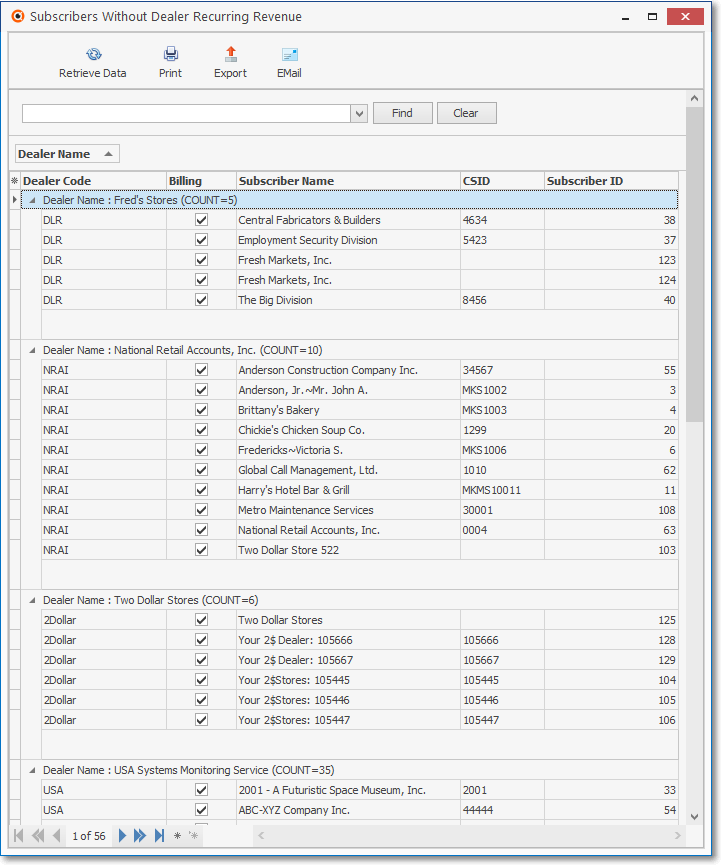
Subscribers Without Dealer Recurring Revenue dialog with data
•Print - Click the  Icon to Print the results based on the formatting and column selections made above.

Subscribers Without Dealer Recurring Revenue dialog - Print Preview
•Export - Once the data has been formatted, filtered, sorted and configured as needed, a copy of this report data may also be Exported, if required.
•EMail - Once the data has been formatted, filtered, sorted and configured as needed, Click the EMail Icon to send this data as a PDF attachment to an Email address of your choosing.
•See the Grids & Lists - Print Preview - Exporting Data chapter for much more information about filtering, formatting, printing and exporting the Subscribers Without Dealer Recurring Revenue report's data grid