
|
Vendors Form Reports IconThis Help File Page was last Modified on 04/01/2017 |


|
|
Vendors Form Reports IconThis Help File Page was last Modified on 04/01/2017 |
 Scroll to Top of Page
 Print Topic
 Email Feedback
 Show/Hide Expanders
❑The Reports Icon on the Vendors Form's Action Menu provides easy access to a variety of Vendor specific printed information.
•These Reports options are specifically populated for the current Vendor.
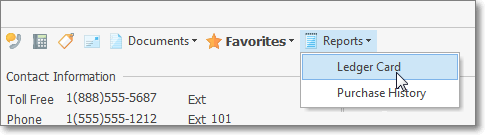
•There are two options on the Reports Icon's Drop-Down Selection List:
1.Ledger Card
2.Purchase History
•If a Vendors Form is currently open, these two options are also available in the Quick Access Menu by Choosing Reports, then Selecting the Payable Reports Menu
❑The Vendor Ledger Card provides a detailed or summary document containing all of the Accounts Payable related transactions for the selected Vendor within a User specified Date Range.
•The Vendors Form must be open to access this report.
•Select the appropriate Vendor using the F2 Search function.
•Choose the Reports Icon on the Action Menu
•Select the Ledger Card option.
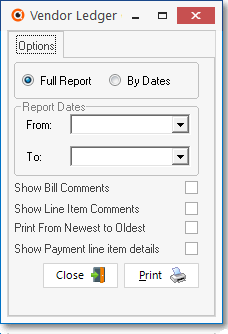
Vendor Ledger Card - Options tab
❖See the Vendor Ledger Card chapter for complete information.
❑The Vendor Purchase History provides a simple to read (detailed or summary) document containing all of the Purchase from the selected Vendor within a User specified Date Range.
•The Vendors Form must be open to access this report.
•Select the appropriate Vendor using the F2 Search function.
•Choose the Reports Icon on the Action Menu
•Select the Purchase History option.
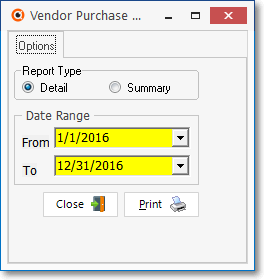
Vendor Purchase History Report - Options tab
❖See the Vendor Purchase History chapter for complete information.