
|
Cash Receipts ReportThis Help File Page was last Modified on 01/06/2024 |


|
|
Cash Receipts ReportThis Help File Page was last Modified on 01/06/2024 |
 Scroll to Top of Page
 Print Topic
 Email Feedback
 Show/Hide Expanders
❑The Cash Receipts Report provides a list of the Receipts showing the Subscriber making the payment, Date received, Check Number, Batch Number (see Defining your Company's Batch Numbers discussion in the E-Payments chapter) to which it was posted, and the method of payment (e.g., Cash, Check, Credit Card).
•Whether reviewing the Receipts for the Month, for balancing with a Deposit Slip for Making a Bank Deposit, or to check on a specific Subscriber's payment history, you will need to view/print some version of this Cash Receipts Report.
•To view the Receipts from a specific Subscriber:
✓Open a Subscribers Form.
✓Use the F2 Subscriber Search function to locate the desired Subscriber record.
✓Next, choose one of these two ways to view the Cash Receipt Report:
a)From the Backstage Menu System Select Reports and Choose Receivable Reports, or
b)From the Quick Access Menu, Select Reports and Choose Receivable Reports.
▪Then, Select the Cash Receipt Report option.
•To view the Receipts from All Subscribers (based on specific criteria):
✓Close any open Subscribers Forms.
✓Then, choose one of these two ways to view the Cash Receipt Report:
a)From the Backstage Menu System Select Reports and Choose Receivable Reports, or
b)From the Quick Access Menu, Select Reports and Choose Receivable Reports.
▪Then, Select the Cash Receipt Report option.
•To print a Cash Receipts Report for a specific Bank Deposit open the Cash Receipts Report dialog as described immediately above, then:
1.Based on which Receipts were Chosen on the Bank Deposits Form to be deposited, Select one of these reporting Period options:
a.For all the Receipts posted Today, or
b.Receipts posted specifically for the One Batch Number assigned to a set of Receipts, or
c.For any Receipt's Batch Numbers that were posted within a designated Date Range
oAlso, see Defining your Company's Batch Numbers discussion in the E-Payments chapter.
2.Check the Deposited Only box
3.Choose the Bank to which they were deposited
4.Specify the Payment Type(s) that are to be reported (i.e., American Express®, Cash, Check, Discover®, Electronic Transfer, Mastercard®, Other, Visa®)
5.Print this Cash Receipts Report.
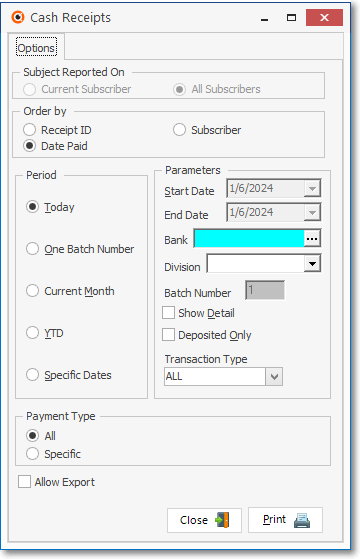
❑Cash Receipts Report Tabs - There are two tabs on the Cash Receipts dialog.
•Options - Initially only the Options Tab is shown (until Options selections have been made and the Print button is Selected).
✓The Cash Receipts Report defaults provide the normal report for Today's Receipts.
✓If more than one Batch Number was used, all Receipts for all Batch Numbers will be listed.
✓Confirm the Batch Number.
▪If a specific Batch Number needs to be reported,
oChoose the One Batch option.
oEnter the appropriate Batch Number.
oConfirm the Start and End Dates and modify those, if necessary.
•Print - Click the Print button to Preview or Print (to a File or a Printer) this report.
✓For other specific information about this report, see the Cash Receipts Report chapter.
Cash Receipts Report - Options tab for Current Subscriber